

Advanced Excel and VBA for Civil Engineering
Accessing the Visual Basic Editor
- Office 2003 → Tools → Macro → Visual Basic Editor
- Office 2007 → Office Button → Excel Options → Popular → Show Developer Tab → Press OK → Go to Developer Tab → Visual Basic
- Office 2010–2021 / Microsoft 365 → Right-click any ribbon tab → Customize Ribbon → Check "Developer" → OK → Developer Tab → Visual Basic


Shortcut: Alt + F11 (works in all versions)
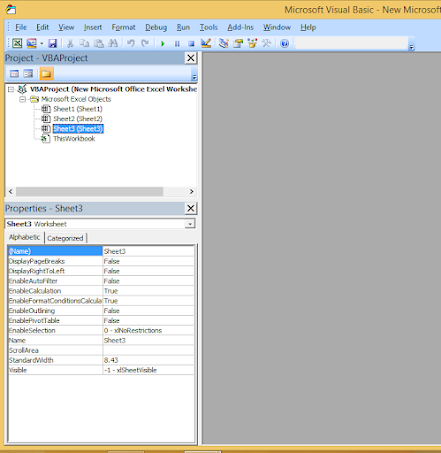
Two Main Windows in VB Editor
- Project Explorer – Lists all open workbooks and their components (sheets, modules).
- Properties Window – Shows properties of selected objects (e.g., module name).
Creating and Renaming Modules
To write VBA code, use modules:
- Right-click in Project Explorer → Insert → Module

To rename: Select module → Properties Window → Change (Name) property (no spaces or special characters allowed).

Setting Up Code Editor Appearance
Tools → Options → Editor Format:
- Syntax error text → Red
- Comment text → Green
Customise as preferred for better readability.
Basics of Writing VBA Code
- Basic structure:
Object.MethodorThing.Action - Comments: Use
'(apostrophe) orREM
Project: Create a Brand New Worksheet
Sub CreateNewSheet()

    Worksheets.Add

End Sub
Project: Choose Where to Insert New Worksheet
Sub CreateNewSheet()

    Worksheets.Add Before:=Worksheets("Sheet3")     ' Before Sheet3
    Worksheets.Add After:=Worksheets("Sheet3")      ' After Sheet3
    Worksheets.Add Before:=Sheets(1)               ' At start
    Worksheets.Add After:=Sheets(Sheets.Count)     ' At end

End Sub
Project: Insert Multiple Worksheets
Sub CreateNewSheets()

    Worksheets.Add After:=Sheets(Sheets.Count), Count:=3   ' Adds 3 sheets at end

End Sub
Project: Insert New Chart Sheet
Sub CreateNewChartSheets()

    Sheets.Add Type:=xlChart   ' Creates a chart sheet

End Sub
Running Macros

- Click Run button or press F5 in editor
- Developer → Macros → Select → Run
Saving and Reopening Macro-Enabled Files
Save as .xlsm (Excel Macro-Enabled Workbook). On reopen, enable macros when prompted.
Errors and Debugging
- Syntax Errors: Incorrect code structure
- Compile Errors: Logical issues before running
- Runtime Errors: Occur during execution
Debugging tools: Step Into (F8), Breakpoints, Watch Window, Immediate Window.
Selecting Cells and Ranges
Single Cell
Sub SelectCell()

    Range("A2").Select
    ActiveCell.Value = 10

    Cells(3, 1).Select          ' Row 3, Column 1 (A3)
    ActiveCell.Value = "Yogi"

End Sub
Multiple Cells
Sub SelectCells()

    Range("A2:A10").Select
    Range("B2", "C10").Select
    Range(Cells(5,4), Cells(6,5)).Select   ' D5:E6

End Sub
Entire Data Region
Sub SelectRegion()

    Worksheets("Sheet1").Activate
    Range("A2").CurrentRegion.Copy

    Worksheets("Sheet2").Activate
    Range("A2").PasteSpecial xlPasteColumnWidths

End Sub
Working with Variables
- Implicit (no declaration)
- Explicit:
Dim variable As Type - Object variables:
Set obj = Range(...)
Non-Declared Variable Example
Sub AddNewTopicInIndex()

    NewFileName = "Yogi"

    Worksheets("Index").Activate
    Range("A2").End(xlDown).Offset(1,0).Select
    ActiveCell.Value = NewFileName

    MsgBox NewFileName & " is added to the List"

End Sub
Object Variable Example
Sub StoreRange()

    Dim filenamecells As Range
    Set filenamecells = Range("B3:B15")

    filenamecells.Font.Color = vbBlue

End Sub
Using If Statements
Simple If
Sub TestFileLength()

    Dim filename As String
    Dim fileLength As Integer
    Dim fileDescr As String

    Range("B10").Select
    filename = ActiveCell.Value
    fileLength = ActiveCell.Offset(0,2).Value

    If fileLength < 100 Then
        fileDescr = "Short"
    Else
        fileDescr = "Long"
    End If

    MsgBox filename & " is " & fileDescr

End Sub
If with Multiple ElseIf
Sub TestFileLength()

    ' ... (variable declarations same as above)

    If fileLength < 100 Then
        fileDescr = "Short"
    ElseIf fileLength < 150 Then
        fileDescr = "Medium"
    Else
        fileDescr = "Long"
    End If

    MsgBox filename & " is " & fileDescr

End Sub
Using Loops
For Loop Example
Sub write1to1000()

    Dim I As Long

    For I = 1 To 1000
        Cells(I, 2).Value = I     ' Populates B1:B1000
    Next I

End Sub
Do Loops
Do Until,Do While,Loop Until- Exit loop early with
Exit Do
In Progress... More advanced topics (arrays, functions, error handling, civil engineering applications like rebar scheduling, quantity takeoff) will be added in future updates.

 Posts
Posts




0 Comments
If you have any doubts, suggestions , corrections etc. let me know